
Lets start with something easy! We have all seen those amazing pillows that say “Hello” – let’s start there. You can create anything you want on your end, I am just going to walk you through the steps on “how to” get to the end goal! Using the font, weld and coloration functions.
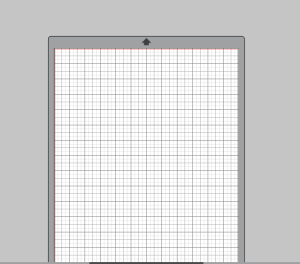
Open your studio and you should have a blank screen:
Lets Click on our buttons – On the Right side you will click on the “A”, you will then notice your menu for your fonts has popped up, select a font that you want to work with, Then click the “A” on the menu on the left side of your screen. See below highlighted sections:
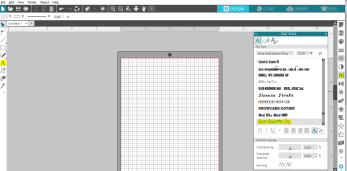
Once you have your “A” on the left side clicked – this will tell the studio that you are ready to start typing – you can click anywhere on your grey section of your studio or the mat section (the white grid in the center of your screen). Personally I like to work on the grey area – I find it easier to see what I am doing. Clicking here will give you a cursor to type with – start typing what you want!
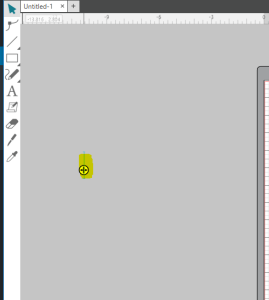
I will type “Hello”
Once you have your word you can click away from the word and it will un-highlight – If you double click on your word you can go back into the view from above and type again if you made a mistake or need to add to your font. If you don’t double click – just single click on your word, you will see the below view, and you can pull the corners (if you pull anywhere that’s not a corner, you will stretch the font) to make your font bigger or smaller

Below I made it bigger. If you have a font that does not overlap in the letters (like mine below) then you can skip the “weld” steps below:
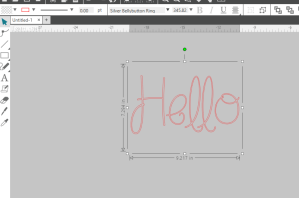
If your font overlaps itself (in the picture below, you will notice that the H overlaps the E and the L and so on) – you will HAVE to fix this before you can move on. If you do not, the program will think you want these lines and it will cut into each letter of the word.
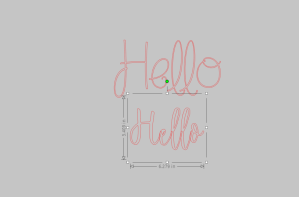
Right click on your word and it will produce a shortcut menu – from here you will select the “weld” option.
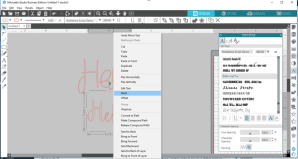
This will tell the program that you want to make this 1 path instead of separate letters and it will remove the lines overlapping in between the letters. Please note – once you do this function you will no longer have a font that you can adjust – the program changes it from a font to a design (it just looks at it as curves and loops) and you will not be able to adjust the word. You can always undo or click on a font again and start typing a new word

From here you are ready to size and cut to put on your pillow or cutting board. You can color your design by clicking (1 time) on it and clicking on the Fill and Line color options.
Below is the fill option – you can click any color you would like to fill the word with:

Below is the line option – you need to select the rainbow option to bring up the color chart like the fill box above and then select your color (make sure your word is selected)

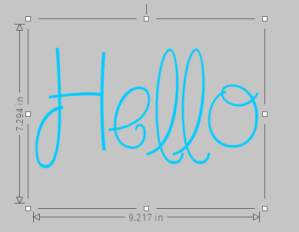
Below you will see the end – where I colored the inside of the word and the line on the outside
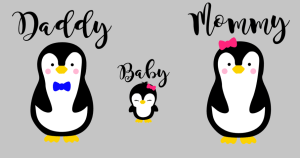
The function above is helpful if you have a design that has a lot of parts and pieces. I will leave you the image below to let you sit on where you can do with this coloration function. You WILL get there and you CAN do it!! Just be patient and remember your do’s – Breathe 🙂
 Steph's Lifestyle
One thought on “Create your first Design”